If you’re running a cap embroidery business, you know how important it is for your machine to run smooth—no glitches, no wonky stitch patterns, just consistent results that make your clients happy. I’m from a cap embroidery machine supply business, and over the years, I’ve had countless customers ask me, “Wait, how do I actually update my machine’s firmware?” It’s not as scary as it sounds, but skipping this step is a surefire way to end up with machines that lag, mess up designs, or even cause unnecessary downtime. Let’s break this down step by step, no jargon, no confusing tech terms—just what you need to know to get it done right. Cap Embroidery Machine
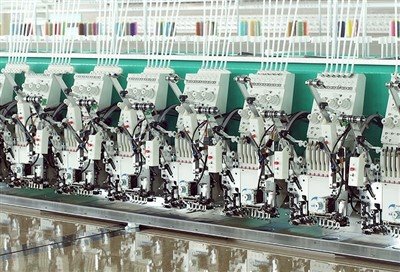
First, let’s cut to why firmware updates matter. A lot of people confuse firmware with software, but they’re totally different. Software is what you use on your laptop to design embroidery files, right? Firmware is the built-in operating system on your cap embroidery machine—its brain, basically. It controls how the machine moves, how it reads design files, even how it reacts if a thread breaks or the hoop shifts. When I supply machines to new customers, some think, “It worked when I unboxed it, why update?” But over time, bugs pop up—maybe a design that used to run fine now freezes mid-stitch, or you can’t use a new type of design file you downloaded. Updates fix that. They also add new features—like better thread tension control, maybe a faster stitch rate for caps, or even compatibility with the latest design software updates. For someone who uses their machine every day, that’s not just a nice-to-have—it’s how you keep your production moving without hiccups.
Now, before you dive in, there are a few prep steps you can’t skip. I’ve seen too many customers mess this up because they skipped a tiny step, so pay attention. First, make sure your machine is turned off, unplugged from the power source, and wait at least 5 minutes before starting. Why? Sometimes the internal components still have a tiny charge, and messing with that can cause errors mid-update. Next, grab a USB drive that’s empty or only has the firmware file on it—no other files, no random photos or old design files. I always tell customers: use a USB drive that’s under 32GB, because larger drives can sometimes cause the machine to not read the file correctly. And format it to FAT32 if you can—most cap embroidery machines work best with that file type. If you’re not sure how to format it, just plug it into your laptop, right-click the drive icon, select “Format,” and pick FAT32 from the options. Easy.
Now, the actual update steps. Let’s keep this super clear, step by step. First, you need the right firmware file. As a cap embroidery machine supplier, I make this easy for our customers—we host all the latest firmware files on our portal, organized by machine model, so you don’t download the wrong one. If you’re not with us, just make sure you get the firmware file that matches your exact machine model. Download it to that formatted USB drive—do NOT unzip it, just drop the file straight onto the drive. If the file is zipped, your machine won’t recognize it, so leave it as-is.
Next, plug the USB drive into the USB port on your cap embroidery machine. Most of our machines have the port on the side, but double-check your manual if you’re not sure—some are on the back near the power cord. Once it’s plugged in, turn the machine on. Now, the machine will automatically detect the USB drive and prompt you to start the update. If it doesn’t, don’t panic—go to the “Settings” menu on your machine’s screen, look for an option that says “Firmware Update” or “System Update,” and select that. It should show you the files on the USB drive, so pick the one you downloaded.
Here’s the part where patience is key. The update process usually takes between 5 and 10 minutes, depending on the model. During this time, do NOT turn the machine off, do NOT unplug it, do NOT remove the USB drive. I repeat—do NOT interrupt the update. I had a customer last month who pulled the USB drive out halfway because he thought it was frozen, and he ended up with a machine that wouldn’t turn on for 2 days. We had to send a tech out, which cost him more than the update would’ve saved. So just walk away, grab a coffee, let it do its thing.
Once the update is done, the machine will automatically restart. Once it boots back up, you should get a confirmation message that says something like “Update Successful” or “Firmware Now [latest version number].” To double-check, go back to the Settings menu, look for “About” or “Machine Info”—it’ll show you the current firmware version. That’s your sign it worked.
Now, a few common mistakes I see customers make, and how to avoid them. First, using the wrong firmware file. If you download the file for a different model, the machine will throw an error, or worse, not work at all. Always verify the model number—usually it’s on a sticker on the back or bottom of the machine. Second, using a full USB drive or a drive that’s not formatted correctly. I once had a customer use a 64GB USB drive with 100 old design files on it, and the machine couldn’t pick up the firmware file at all. Stick to small, empty, FAT32-formatted drives. Third, interrupting the update like I mentioned earlier—never do that. It’s tempting, but it’s not worth the headache.
Another thing to note: how often should you update? It depends. If you’re with us, we send out update notifications via email every 2-3 months, usually when there’s a big fix or a new feature. If you’re not, check the manufacturer’s website every 6 months, or if you start noticing issues like designs freezing, thread tension being off, or your machine not recognizing a new design format, that’s a sign you should update sooner.
Wait, what if something goes wrong? Don’t panic. If the update fails, the machine will usually give you an error code or a message. First, try re-downloading the firmware file—sometimes files get corrupted during download, so delete the old one, re-download it, and put it back on the USB drive. Make sure the USB drive is formatted correctly, too. If it still fails, give your machine supplier a call (if you’re with us, our support team is available 7 days a week for this stuff), and they’ll walk you through it. Most of the time, it’s a quick fix, not a total breakdown.
Let me also share a quick pro tip from our team: always update the firmware when your workload is slow. Don’t do it the night before a big order run, in case something goes wrong. You’ll have time to fix it without delaying your jobs. Also, after updating, test it with a small, simple cap design first—one you know works on your machine—to make sure everything runs smooth before you jump into your big order.
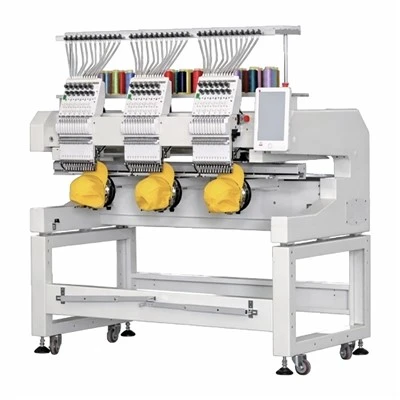
At the end of the day, updating your cap embroidery machine’s firmware is one of the easiest and most impactful things you can do to keep your machine running at its best. It’s not rocket science, but it makes a huge difference in consistency and productivity. If you’re not sure which firmware file is right for your machine, or you run into any hiccups along the way, reach out to our team to discuss your machine needs. We’re here to help, whether you just need a quick walkthrough or are looking for a new cap embroidery machine to add to your workshop. Don’t let outdated firmware hold your business back—get that update done today, and keep your stitching on point.
Computerized Embroidery Machine References:
- Cap Embroidery Machine Firmware Best Practices, Industrial Embroidery Supply Association, 2023
- Troubleshooting Firmware Updates for Commercial Embroidery Equipment, Tech Support Magazine, 2022
- FAT32 File System Compatibility for Embroidery Machines, Global Textile Machinery Standards, 2021
Yiwu Kuhao Import and Export Co., Ltd.
As one of the most professional cap embroidery machine manufacturers in China, our products have good reputation in the market. Welcome to buy discount cap embroidery machine made in China here and get quotation from our factory. All customized products are with high quality and low price.
Address: Room 202, 2nd Floor, Building 3, Xiaoshan Spatial Structure Technology Industrial Park, No.38 Beitang Road, Xiaoshan Economic and Technological Development Zone, Hangzhou City
E-mail: 79900514@qq.com
WebSite: https://www.kuhaoembroidery.com/
